Android Setup
How to Activate an eSIM on Android
August 30, 2026
•
4 min read
•
By ZunoSim Editorial
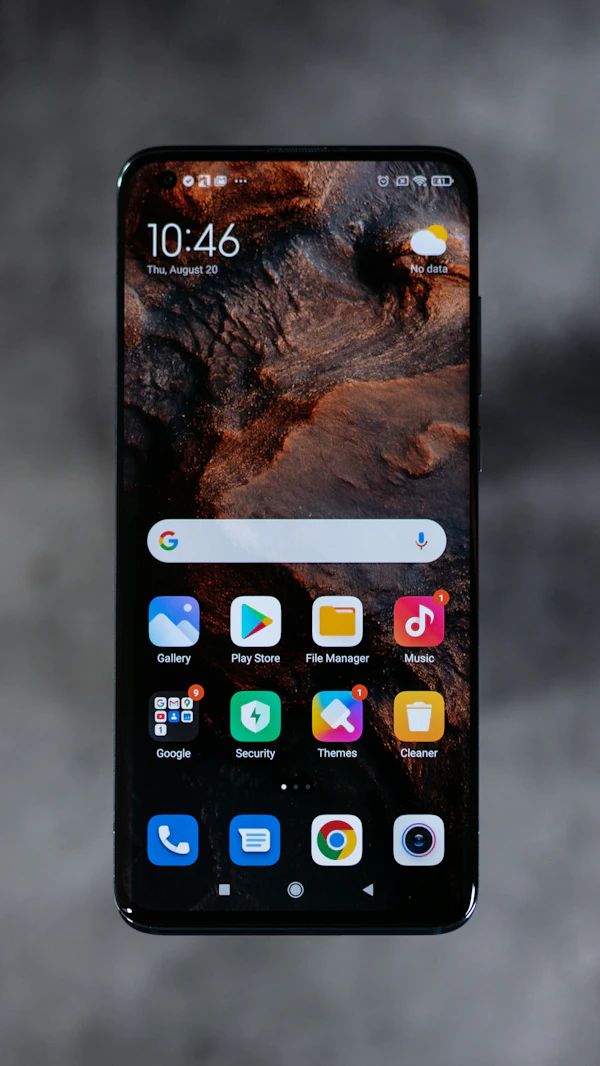
Setting up a travel eSIM on an Android device is quick and straightforward. Whether you use a Samsung Galaxy, Google Pixel, or Xiaomi flagship, follow these steps to install your ZunoSim profile.
Installation on Samsung Galaxy Devices
- Go to Settings > Connections > SIM Manager.
- Tap Add Mobile Plan (or Add eSIM).
- Select Scan QR code from provider and scan your ZunoSim QR code.
- Tap Confirm to download the profile.
- Set Mobile Data to ZunoSim and ensure Data Roaming is turned ON when traveling.
Installation on Google Pixel Devices
- Go to Settings > Network & internet > SIMs.
- Tap the + (Add) icon next to SIMs.
- Tap Download a SIM instead? and scan your ZunoSim QR code.
- Tap Download & Activate.
- Select ZunoSim for Mobile Data and enable Roaming.
Troubleshooting Connection Issues
If data does not connect after landing, check that APN settings are set to automatic, and restart your Android device. Check our FAQ Page for detailed support.
Download the ZunoSim Android App to manage top-ups and check your data balance on the go.